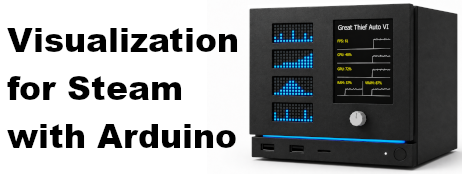

Instructions
Follow these setup guides to send game and system data from Steam to your Arduino display.
1. Add four Modulino LED matrices
Every new Arduino Modulino LED Matrix uses the same default I²C address,
0x39. Before all four matrices can share the same Qwiic bus, assign three
of them the addresses 0x52, 0x53, and 0x54. Leave
the fourth matrix at 0x39.
The physical order of the devices on the Qwiic bus does not matter. I²C packets are delivered to the device with the matching address, regardless of where that device is located in the Qwiic chain.
Prepare the matrices
- Use Flash the Firmware in V4SwA to install the latest firmware on the Arduino so the address operations are available.
- Disconnect power from the Arduino and disconnect all Modulino devices.
- Label the four matrices FPS, CPU, GPU, and RAM. The labels make it easier to preserve their order after programming.
Program the CPU matrix to 0x52
- Connect only the matrix labelled CPU to the Arduino.
- Power on the Arduino and start V4SwA.
- Wait until V4SwA is streaming metrics, then open Settings.
-
Find the LED matrix at
0x39and select → 0x52 in the Operations column. - Wait for the address-change confirmation, then disconnect power.
Program the GPU and RAM matrices
Repeat the same procedure with one matrix connected at a time:
- Connect only the GPU matrix, power on, and select → 0x53. Wait for confirmation, then disconnect power.
- Connect only the RAM matrix, power on, and select → 0x54. Wait for confirmation, then disconnect power.
-
Do not reprogram the FPS matrix. It must remain at the default
address,
0x39.
Connect and verify all four matrices
- With the Arduino powered off, connect all four matrices and the other Modulino devices in the build to the Qwiic bus.
- Power on the Arduino and wait for V4SwA to begin streaming metrics.
- Open Settings and verify that all four addresses are discovered.
| Matrix label | I²C address | Displayed metric |
|---|---|---|
| FPS | 0x39 |
Frames per second (0–127 FPS; 128+ fills the graph) |
| CPU | 0x52 |
CPU usage (0–100%) |
| GPU | 0x53 |
GPU usage (0–100%) |
| RAM | 0x54 |
RAM usage (0–100%) |
Address changes are stored permanently on each matrix. If a target button is not shown, that address is already occupied by a discovered device.
2. Enable FPS collection with MangoHud (SteamOS / Linux only)
On SteamOS or Linux, V4SwA reads fresh FPS samples from a log created by MangoHud. MangoHud is already installed on SteamOS. On other Linux distributions, install it first. In either case, MangoHud must be loaded when the game starts; having it installed by itself is not enough.
- Open Steam and go to Library.
- Select the game whose FPS you want to show.
- Select the Manage gear icon, then select Properties.
- On the General tab, find Launch Options.
- Enter the following launch option exactly as shown:
MANGOHUD_CONFIG=autostart_log=1,log_interval=1000,log_duration=0 mangohud %command%- Close the Properties window. Steam saves the change automatically.
- Restart the game if it is already running, then run V4SwA alongside it.
- Check the FPS sourcing status in V4SwA. A green status light means fresh FPS samples are available for the detected game.
What the launch option does
autostart_log=1starts logging when the game starts.log_interval=1000records a sample every second.log_duration=0keeps logging until the game exits.mangohud %command%starts the Steam game through MangoHud.
This setting is applied per game. MangoHud log files accumulate in your home directory by default and can be deleted after playing. To stop using MangoHud for the game, remove the launch option from its Steam properties.